
Your device
Identify the television, streaming device, phone, tablet, or computer you plan to use.
Device setup resources
Choose your device family, prepare the required information, follow device-specific setup steps, test playback, and troubleshoot common setup issues.
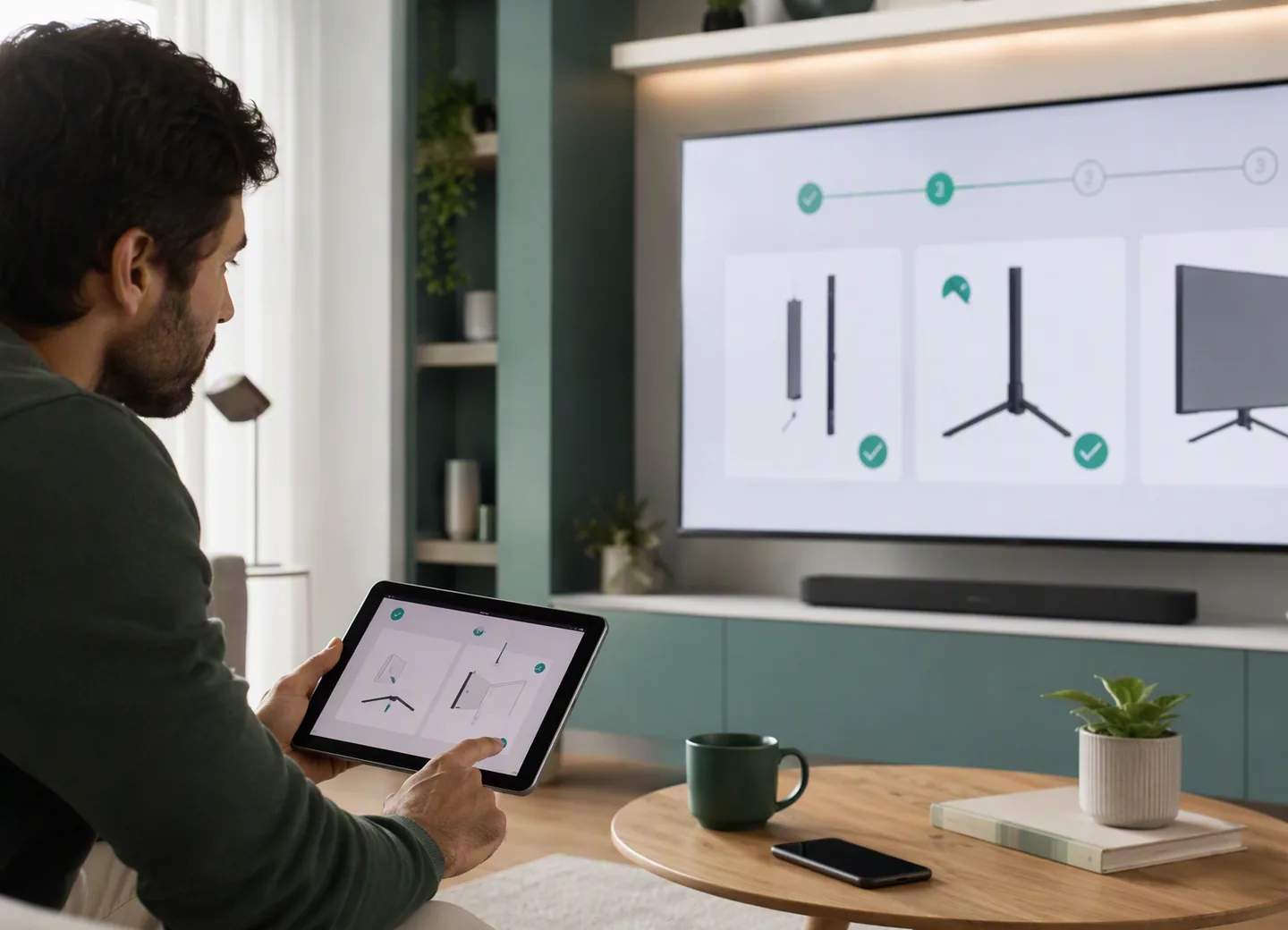
Prepare once
Most setup paths begin with the same essentials. Prepare these items before opening the guide for your device.
Identify the television, streaming device, phone, tablet, or computer you plan to use.
Connect the device and complete its normal system updates before installing a player.
Where applicable, confirm that the device's official app store opens and can install a compatible player.
Keep the account or playlist information supplied for your accepted Free Trial or subscription request ready on a private screen.
Choose a device family
The descriptions distinguish the five supported guide families. Device menus and compatible player availability can still vary by model and region.
TV & streaming
Use this guide for an Android TV or Google TV device with access to Google Play Store and a compatible player.
TV & streaming
Use this guide for Amazon Fire TV streaming devices with access to the Amazon Appstore.
TV & streaming
Choose the on-page path for Samsung, LG webOS, Apple TV, or a supported MAG-style set-top box.
Mobile
Choose the iPhone and iPad path or the Android phone and tablet path, then test locally before trying Cast or AirPlay.
Computer
Use a trusted desktop player from its official publisher, add the supplied information, and test the playlist on Windows or Mac.
Reset the filters, use the setup overview to identify the device family, or ask Support about the model you plan to use.

Troubleshooting sequence
This sequence does not solve every problem, but it helps isolate the stage that needs attention.
Ready when you are
The Free Trial uses one simultaneous connection to help you explore current availability. Plans let you choose duration and simultaneous connections; the relevant account information is supplied for an accepted request.